(Your shopping cart is empty)
Search 


Click to verify BBB accreditation and to see a BBB report.
You are here: Home > StreetEagle Live Demo!
Untitled Document
StreetEagle®GPS Live Demo

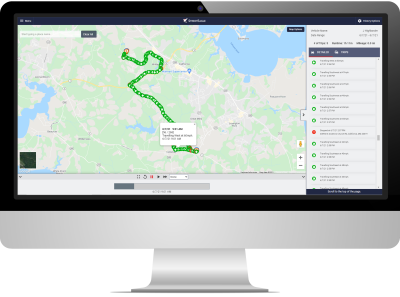
  Welcome to the StreetEagleWEB Tracking Interface. Our comprehensive tracking utility provides you with everything you need to monitor your vehicles' complete activity. The enumerations correspond to the descriptions below the interface graphic. Once you have a good understanding on how to use StreetEagleWEB, proceed by clicking "Login to StreetEagle Live Demo >>"  
   
Username: guest  
Password: password
StreetEagle Tutorial Video
 

      Getting Familiar with the StreetEagleWEB


1
> Vehicle Selection Window
        Select any vehicle within the demo group to view their current activity and status. The vehicle will be centered and zoomed into view with its detailed status displayed in the top right panel (refer to 2)
         
 
2
> Vehicle Activity Status Display
       
This information panel displays the selected vehicle's assigned name, activity status, speed, direction of travel, approximate address, and last date/time reported
         
 
3
> Vehicle Icons
       
Each vehicle within the demo group is represented by an icon plotted on the map. There are four activity states that are represented by four different vehicle icons. This makes it easy to monitor the status of each vehicle when viewing all vehicles at once. Use the key below.
       
Vehicle Started Vehicle In Transit Vehicle Stopped Vehicle Parked
 
 
4
> Showing All Vehicles
       
The "Show All Vehicles" button is used to reposition the map to show all the vehicles within the group in one easy click.
         
 
5
> Viewing Vehicle History
       
With the vehicle currently selected, you can click the "History" tab to view the historical breadcrumb trail for that vehicle. The data access term for your service package will dictate how far back you can view the vehicles' location history.
         
 
6
> Viewing Vehicle Activity Reports
       
Select the "Reports" tab to view the complete activity of your vehicle in a printable report. Detailed information including time started, time parked, time speeding, time idling, and summary information for each event. Location Address shown for each park event to give total time spent at each stop.
         
 
7
> Ignition Disable/Enable and Door Unlock
       
With a click of a button, you can control the access to your vehicle's ignition. Unlock your doors in the same manor. Please consult your dealer for hardware and installation options.
         
 
8
> Vehicle Settings
       
The settings button takes you to the Vehicle Tracking Settings, where you configure:
> Custom Vehicle Name > Speeding Alert Settings
> Email Contact > Geofence Alert Settings
> Text Messaging Contact > Security Alert Settings
> Battery Alert Settings > Tow Alert Settings
> Driver Security Alert > Motion Alert Settings
         
 
9
> Map Controls
        The map controls located in the top left corner of the map window allow you to shift the map with the direction arrows and zoom in/out with the sign buttons.
To use your mouse to control the map...click, hold, and drag the map into the view desired. Double-click a point on the map and the utility will automatically center the map to that point.
         
 
10
> Map View Selection
       
You can select between 3 map views: Atlas "Map", "Satellite", and "Hybrid" (satellite view with overlaying highway and street references). Use the map selection buttons in the top right corner of the map window to change between map views. With the satellite view, you can practically zoom in to see what parking spot your vehicle is in! You will find the best level of satellite detail is in highly populated areas like cities and towns.
         
 
11
> Enhanced Mapping Controls
        Traffic On/Off - view real-time traffic information with this advanced mapping feature. Notify your drivers of caution zones such as accidents, construction, or heavy conjestion.
Street View On/Off - 360 degrees of real street level imagery. Literally view the building your vehicle is parked in front of.